
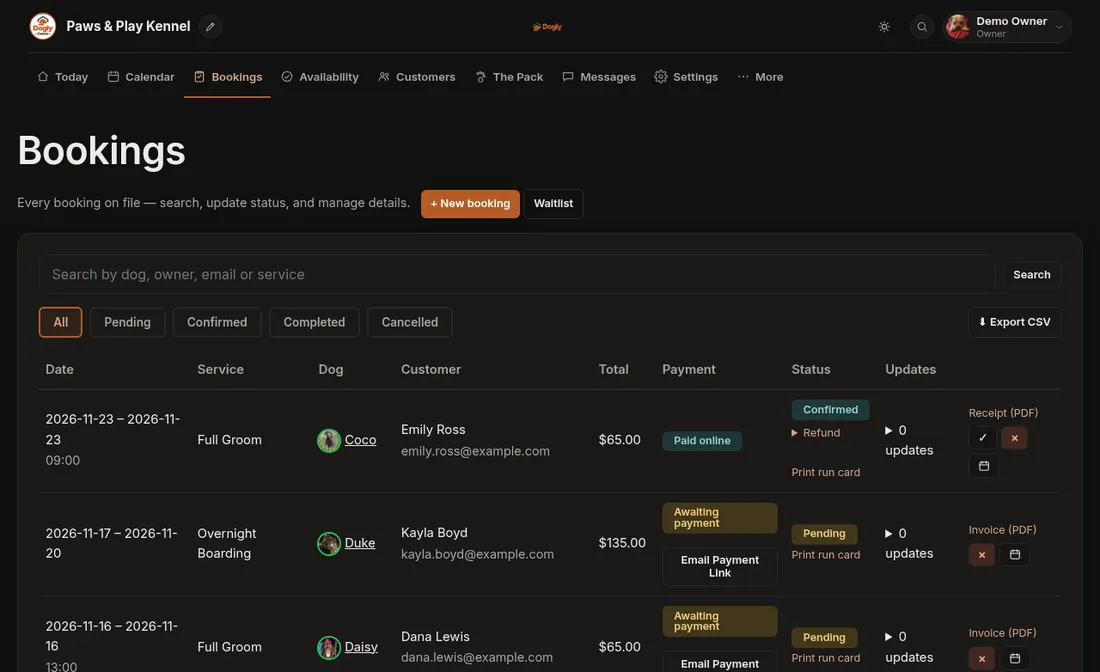
Bookings is the full list of every booking, whether a customer made it online or you added it for someone on the phone. This is where you take payment, finish stays, and fix things when plans change.
Finding a booking
- Open Bookings in the top bar.
- Use the tabs (All, Pending, Confirmed, Completed, Cancelled) to narrow the list.
- Or type in the search box. It looks at the dog's name, the owner's name, the owner's email and the service name. The tabs and the search work together.
The list shows 25 bookings per page, with the latest start dates first. Use Older and Newer at the bottom to move through pages. On a phone each booking is a card. Tap a dog's name to open its info card.
What the statuses mean
- Pending: an online booking waiting for the customer to finish paying by card. If they never do, it is released after your hold time (Settings → Business & payments → Hold unpaid online bookings for).
- Confirmed: it is on the calendar and uses up capacity. Pay-in-person and e-Transfer bookings are confirmed straight away.
- Completed: the stay is over. Press the tick (Mark Completed) on a confirmed booking afterwards. This is what counts as a visit on the dog's card.
- Cancelled: released, and the nights go back to your capacity.
Getting paid
- Mark Paid: use it when a customer paid you in person (cash, debit or card machine) or sent an Interac e-Transfer. Bookings waiting on a transfer show Awaiting e-Transfer.
- Email Payment Link: emails a card payment link for an online booking that is still awaiting payment.
- Text Payment Link: texts that link instead. It needs Two-Way Texting turned on in Features and a connected Twilio number. See Text messages.
- Mark Balance Paid: use it when you collect the rest after a deposit. Dogly does not charge the balance for you.
Say a stay costs $135 and the customer paid a $50 deposit online. The row shows Deposit paid, $85.00 balance due until you collect it and press Mark Balance Paid.
Changing a booking
- Change dates: the icon with that name, on a pending or confirmed booking. It works for single-dog bookings. If the price changes, a green message tells you by how much. See Move a booking to new dates.
- Cancel: the red cross. You are asked to confirm. If the booking was paid online it is marked Refund needed with a link to refund it. See Cancel a booking.
- Refund: open Refund under the status, check the amount (you can type less than the full amount for a partial refund) and press the button. Card money goes back through your own Stripe or Square account and the customer is emailed. For cash or e-Transfer the refund is recorded and you return the money yourself. See Refund a customer.
- Receipt or Invoice: a PDF link on every booking that is not cancelled. It says Receipt once paid and Invoice before.
Updates for the owner
Open Updates on a booking, write a note (add a photo if you like) and press Post Update. The dog's owner sees it, for example "Bruno had a great playgroup." Press Delete under an update you posted by mistake.
Good to know
- + New booking at the top adds a phone or walk-in booking. Waitlist next to it shows customers waiting for a full date to open.
- Staff need the matching permission to mark paid, cancel or refund. See Decide what each staff member can do.
- Export CSV downloads the list for your accountant (owner, or staff you have allowed).
- Print run card appears under the status when Printable Run Cards is on.
If it does not work
- No Mark Paid or Cancel button: that staff login is missing the permission. An owner can allow it.
- No Email Payment Link: the customer has no email on file, or the booking is part of a multi-dog group.
- A booking vanished from the Calendar: the calendar only shows pending and confirmed bookings. Look under Completed or Cancelled here.