
Customers lists everyone with an account. Most people create their own when they book on your site, but you can add someone yourself, for example a regular who only ever phones.
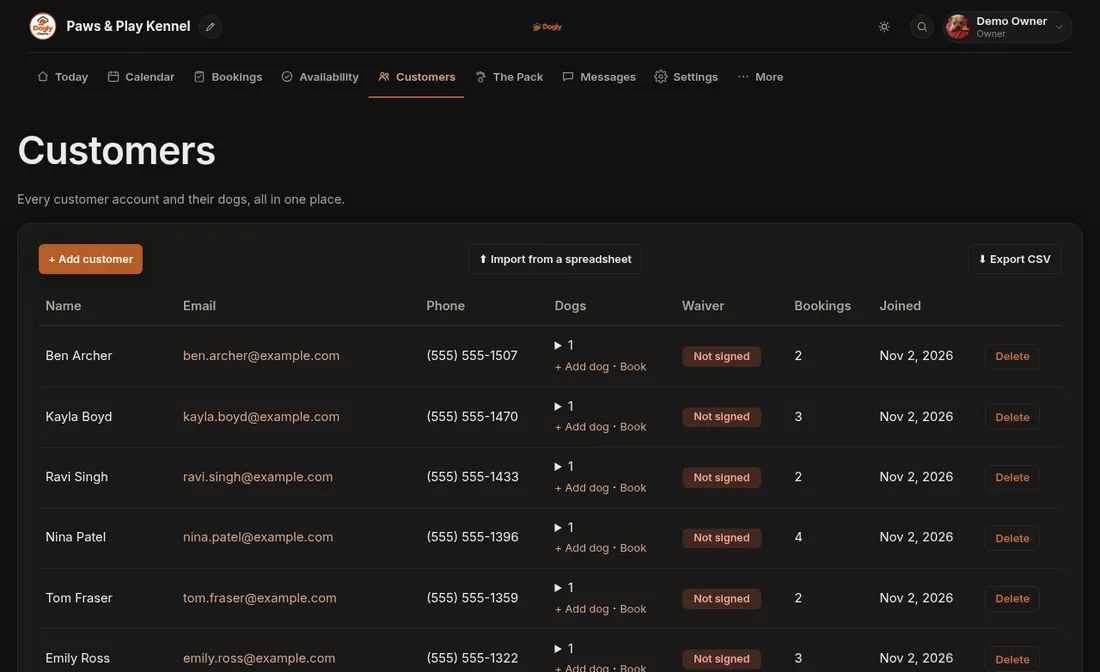
Add a customer
- Open Customers and press + Add customer.
- Type their name. That is the only required box. Phone, address and private notes are optional.
- Add an email if you have one. You can skip it for people who only call. If you do add it, they can claim their record later by signing up with that email.
- Fill in a dog under Dog 1 (you can add up to four on this page). Dogs without a name are skipped.
- Press Save customer. A green message says Customer added.
To add another dog later, press + Add dog in that customer's row. Press Book beside it to start a booking for them.
What the list shows
Name, email, phone, their dogs, whether they have signed your waiver, their number of bookings and the date they joined. Press the number under Dogs to list them, then tap a dog to open its card.
Other buttons
- Export CSV downloads the customer list (owner, or staff you have allowed).
- Import from a spreadsheet (owner) brings in customers and their dogs from an Excel (.xlsx) or CSV file, one row per dog, up to 5,000 rows and 2 MB. Booking history is not imported. See Import customers from a spreadsheet.
- Delete (owner, or staff allowed to delete customers) is refused while the customer has pending or confirmed upcoming bookings, so cancel those first. A customer with no payments on record is removed with their dogs and bookings. One with paid bookings is anonymised: name, contact details and dog details are erased so your money records stay. This cannot be undone.
If it does not work
- You already have a customer with that email: search for them instead of adding a second record.
- That email address doesn't look right: check for a typo.
Customers never see each other's information, and never see your private notes. Related: Add a customer by hand, Delete a customer.