
Use this when you are closed for Christmas, short on staff for a week, or want to take extra dogs on a long weekend. Anyone on your team can do it.
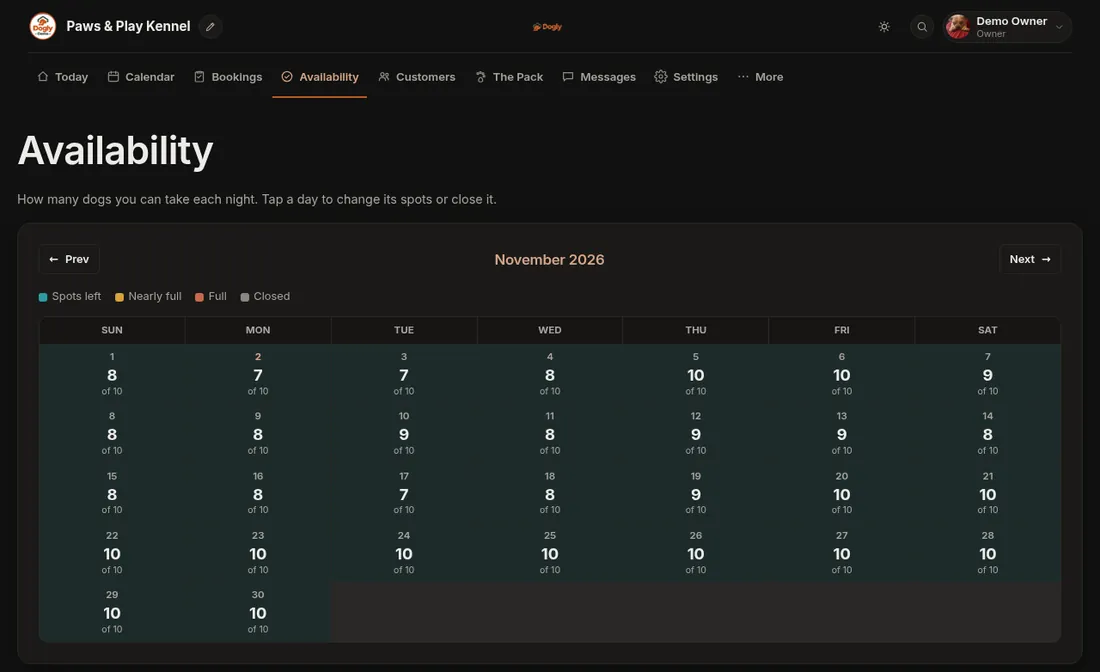
- Click Availability. You see a calendar for the month with the spots left on each day. The key above it explains the colours for Spots left, Nearly full, Full and Closed. Use Prev and Next to change months.
- Tap the first day you want to change. A box opens below the calendar with that date as its heading.
- To change several days in a row, set Through to the last date. Leave it as it is to change one day only.
- Type the Spots for each night. To close the days instead, choose Closed, no bookings.
- Press Save. The calendar comes back with your change. Closed days say Closed.
Good to know
- The number you type goes on every day in the range. Closing Dec 24 to Dec 26 at 8 spots sets all three days to 8 and closed.
- The box tells you how many dogs are already booked that night, so you can see what you are working with.
- Closing a day does not cancel anyone already booked. It only stops new bookings. Contact those customers yourself if you cannot take their dogs.
- To reopen a day, tap it, choose Open for bookings and save.
- If someone was on the waitlist for a day you made bigger, Dogly checks the waitlist when you save.
- Changes here affect your main pool of spots. If you use capacity groups, they apply to services left on Default / Ungrouped, not to services in a group.
If it does not work
- Customers can still book a closed day. Check the service is not in a capacity group, since groups have their own spots.
Related: Set how many dogs you can take and Use the waitlist for full dates.