
Your waiver is what customers agree to before they board or bring a dog in. Each customer signs once by typing their name, and Dogly keeps the date with it. You can change the wording whenever you like.
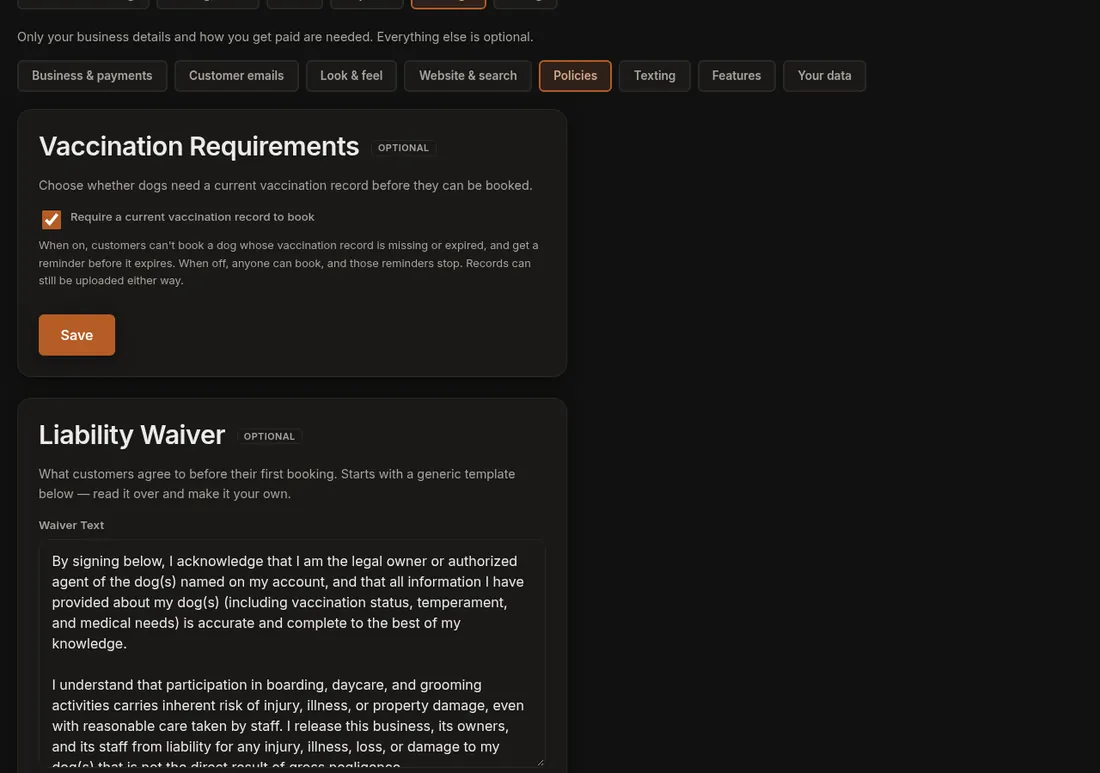
- Click Settings, then open the Policies tab.
- Find Liability Waiver.
- Edit the Waiver Text.
- Only if you made a real change that everyone must agree to, tick Require every customer to sign again.
- Press Save Waiver. A green line says "Waiver saved."
Good to know
- The text starts as a generic template. Read it over and make it yours. It is a good idea to have someone you trust, such as a lawyer or your insurer, look at it.
- Fixing a typo? Leave the box unticked. Customers who already signed stay signed.
- Ticking the box raises the version number by one (it shows under the box, like "Currently version 1.0"). Every customer then has to sign the new version before their next online booking. Their earlier signatures stay on file.
- A customer who has not signed sees a prompt with a Review & Sign Waiver button when they try to book.
- When your staff make a booking for someone who phoned or walked in, no signature is needed first. The customer is asked at their next online booking.
If it does not work
- Your old text came back. Dogly will not save an empty waiver. Type your wording, then save.
- Customers were not asked to sign again. The box was not ticked when you saved. Tick it and save once more.
More: Liability waiver.