
Services are the things customers choose when they book: boarding, daycare, grooming and any extras. Each one has a name, a price and a few options. If you are brand new, start here.
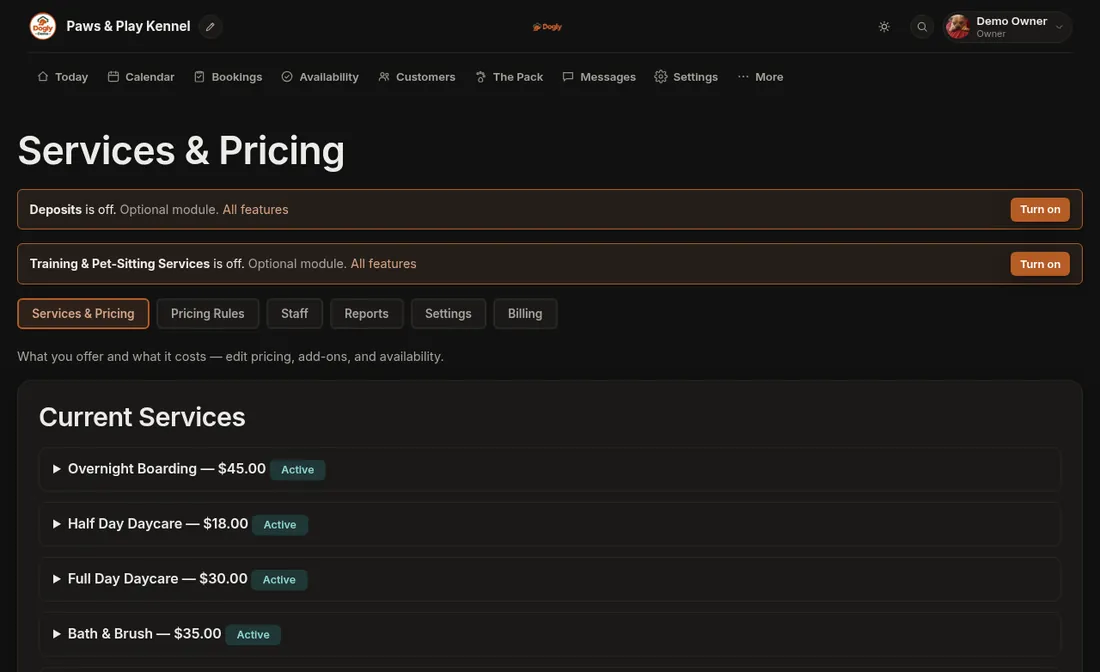
- Click More, then Business. The first tab is Services & Pricing.
- If the list is empty, you can press Add three starter services for me. It creates boarding, daycare and grooming with suggested prices, all hidden until you set your own prices. Open each one, change the price, then tick Visible to customers.
- To make your own, scroll to Add a New Service and choose a Type: Boarding, Daycare, Grooming or Add-On.
- Type the Name and a short Description. This is what customers read.
- Enter the Price ($) and a Duration Label such as "per night" or "half day".
- Press Add Service.
To change a service later, click its name in Current Services to open it, edit, and press Save Changes.
How prices work
- Boarding is charged per night and daycare per day. Say you charge $45 a night and a dog stays three nights: the total is $135.
- Full-day and half-day daycare are two separate services, each with its own price.
- Grooming is one flat price per appointment.
- Holiday prices, extra for bigger dogs and long-stay discounts are set on the Pricing Rules tab (see Add holiday prices, bigger-dog and long-stay rules).
Good to know
- Calendar colour is optional. It is the colour the service uses on your calendar. Leave Use the default colour ticked if you do not mind.
- Capacity Group, Location and Deposit only appear once you turn on Capacity Groups, Multiple Locations or Deposits in Features.
- Unticking Visible to customers hides a service without deleting it. It shows as Hidden in your list.
- Deleting a service cannot be undone, so hide it instead if you might want it back.
- Training and Pet-Sitting appear as types only if you turn them on in Features. Customers can then book them online. Training is a price per session and customers pick a day and a time (you add the times under Availability, choosing Training). Pet-Sitting is a price per day and customers pick a first and last day. It does not use your boarding spots.
- Bookings already made keep the price they were made at when you change a price.
If it does not work
- A service customers cannot see is usually hidden. Open it and tick Visible to customers.
- If the form will not save, check that Name and Price are filled in.
Related: Add-ons, Deposits and Change a price.