
Capacity is how you stop yourself being overbooked. You set one normal number, then change it for the dates that are different, like a holiday weekend or a day off.
Set your normal number
Your Default Nightly Capacity lives in Settings, in the Business & payments section (owner only). Every date uses that number unless you change it.
Change a specific date
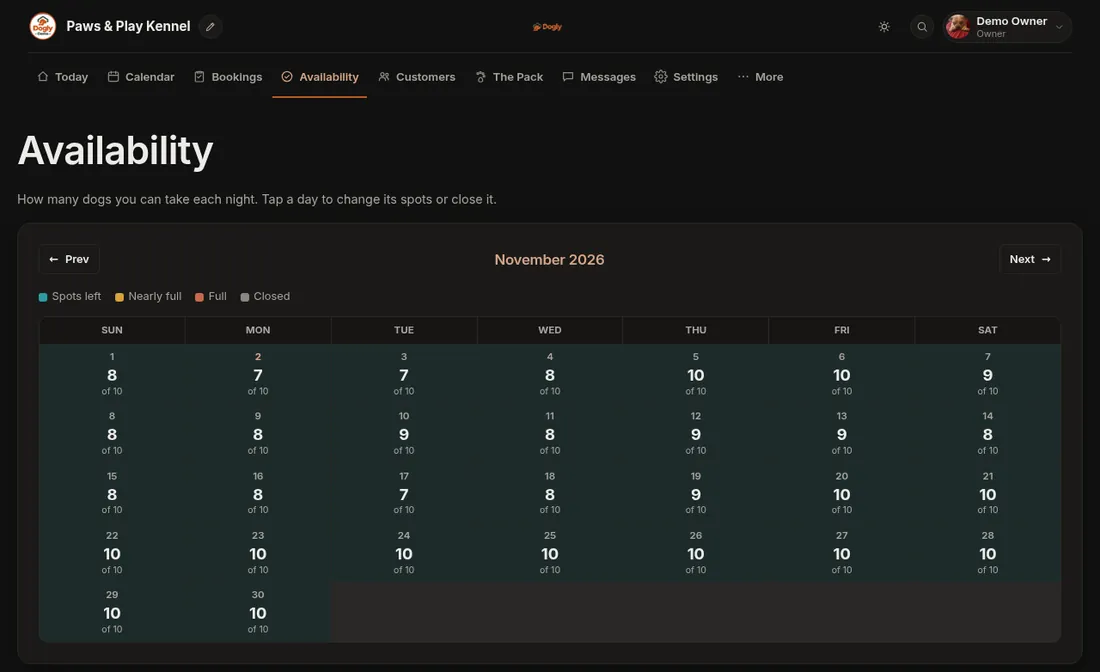
Open Availability in the main menu. It is a month grid. Each day shows how many spots are left, for example 9 of 10, and is coloured by how full it is: teal has room, gold is nearly full, coral is full and grey is closed. Use the arrows to move between months.
- Tap a day.
- Under Spots for each night, type how many dogs you can take. To change several days at once, set the Through date to the last day. Leave it alone for just one day.
- Under Are you open on these days? choose Open for bookings, or Closed, no bookings for a holiday or day off.
- Press Save.
The editor also tells you how many dogs are already booked that night, so you will not set the spots below that number by accident.
Grooming time slots
Grooming does not use the nightly number. Instead, under Add grooming or training appointment times, choose whether These times are for Grooming or Training, pick a date, a start and end time and how long each appointment is in minutes, then press Create time slots. Customers choose from these slots. See Set up grooming time slots.
Good to know
- Boarding and daycare draw from the same pool of spots, unless you turn on Capacity Groups to split them (see Capacity groups).
- A confirmed booking uses up a spot for each night. A cancelled booking gives them back.
- Customers cannot book a closed day.
If it does not work
- If customers say a date is full when you expect room, tap that day in Availability and check the number of spots and whether it is set to closed.
Related: Change your capacity and Close a day.