
When someone calls or turns up at the desk, you can book them in yourself. The booking follows the same rules as the website, so you will not double-book a full day by accident.
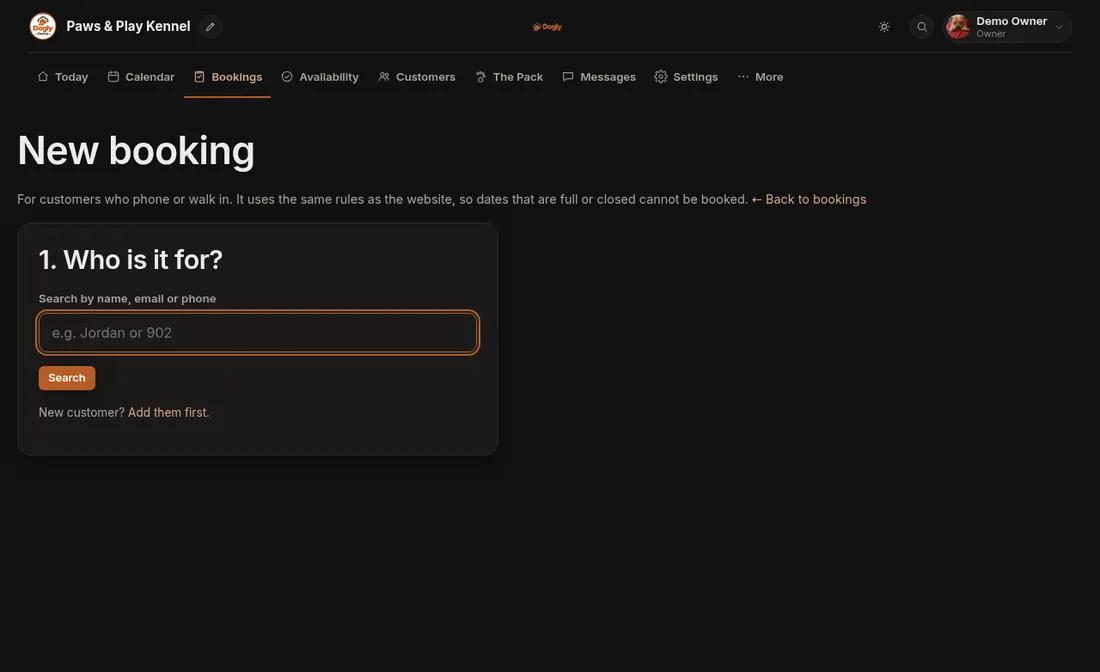
- Click Bookings, then + New booking. (You can also press Book next to a customer on the Customers page.)
- Who is it for? Search by name, email or phone and click the customer. If they are new, press Add them first, create them and their dog, then come back.
- Which service? Click the service.
- Details: tick the dog (or dogs) and choose the dates. For boarding pick check-in and check-out, for daycare pick the day, and for grooming pick a day and then an open time. Add any add-ons (boarding and daycare only on this screen) and notes.
- Payment: choose Will pay at drop-off, Already paid in person, Will send an Interac e-Transfer (if you turned it on) or Customer pays by card now. The card option gives you a secure link, see Take a card payment for a phone booking.
- Leave Email the customer a confirmation ticked if you want them to get one, then press Create booking.
Good to know
- Bookings you enter yourself are marked Offline booking in your Bookings list and on the dashboard, so you can tell them apart from website bookings.
- The customer does not need to have signed your waiver online first. They will be asked at their next online booking.
- Say you charge $45 a night and a dog stays three nights: the total is $135, and you will see it on the booking.
If it does not work
- The date will not let you choose it. It is full or closed. Check Availability.
- The dog is refused. If you require vaccination records, the dog needs a current one. Update it in the dog's profile and try again.