
Reports gives you a quick read on how the business is doing, without a spreadsheet. It is also where you chase unpaid bookings and tally the day's takings.
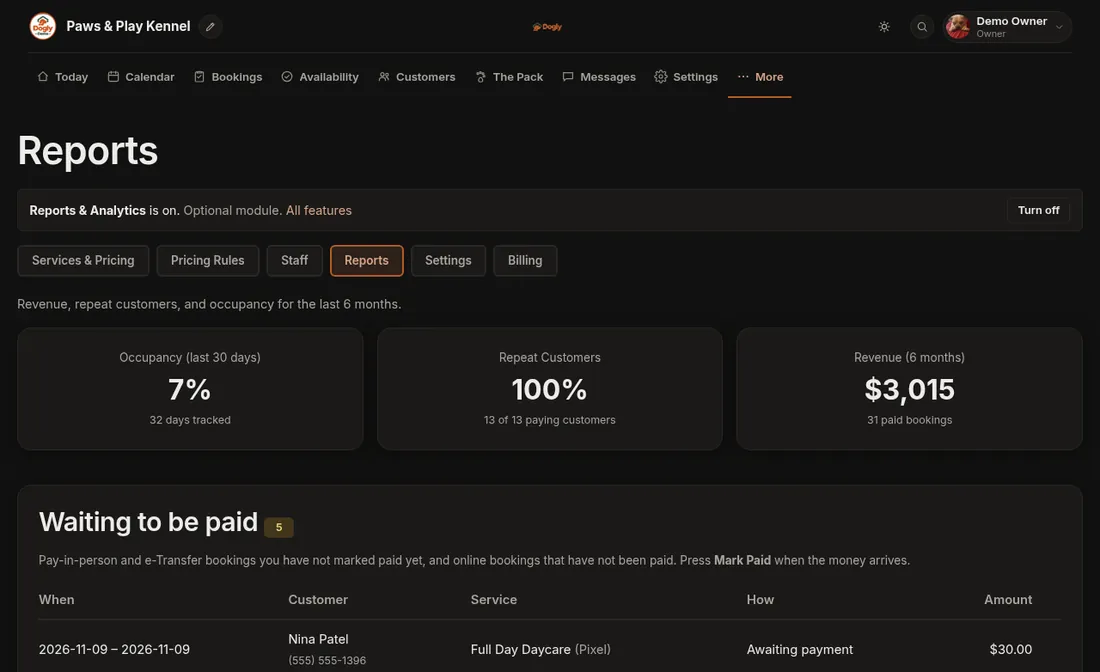
Open it from More, then Business, then the Reports tab.
What you will see
- Occupancy (last 30 days): how full you have been.
- Repeat Customers: the share of paying customers who have come back.
- Revenue (6 months) and the number of paid bookings.
- Waiting to be paid: unpaid bookings. Pay-in-person and e-Transfer ones have a Mark Paid button.
- End-of-day tally: pick a date under Day and press Show. It lists payments you marked as received that day (cards, cash or debit at the desk, Interac e-Transfer, and package credits), plus balances collected after a deposit, with a Total received.
- Busiest nights coming up, listing nights in the next 30 days more than 70 percent full.
- Revenue by Month and Revenue by Service for the last 6 months.
- Download payments for your accountant: a CSV file of paid bookings (see below).
Download payments for your accountant
Under Download payments for your accountant, choose a From and To date and press Download CSV. You get one row for each booking that was paid in those dates (by the day it was marked paid), up to three years at a time. Only the owner, and staff you have allowed to download lists, see this box.
- Columns: Booking ID, Date Paid, Customer, Service, Subtotal, Tax, Deposit, Balance, Refunds, Net, Payment Method, Stripe Payment ID and Square Payment ID.
- Subtotal is the money collected before tax, and Tax is the part of it that is sales tax (0.00 if you have not set up tax). For a booking with a deposit, Deposit is what was charged up front and Balance is the rest, once you have marked it paid. Net is what was collected minus Refunds.
- Dates are written like 2026-11-03 and amounts like 174.00, with no dollar sign. The file opens in Excel, and imports into QuickBooks or Xero as a spreadsheet.
- Using QuickBooks Online? Under it, QuickBooks Online sales receipts CSV makes a file laid out for QuickBooks's own sales receipt import (one row for the service and one per add-on). Dogly does not connect to QuickBooks, you import the file yourself. See Import payments into QuickBooks Online.
- Bookings paid with a package credit are left out, because no money changes hands at booking. Package sales are not in this file. Refunds are shown on the row of the booking that was refunded, not on the day you refunded it.
- If you use more than one location, the file follows the location chosen at the top of Reports.
Good to know
- The numbers cover the last 6 months, and only paid bookings count towards revenue.
- The end-of-day tally goes by the day you pressed Mark Paid, which is handy when someone settles up later.
- Staff can open Reports only if you allow it. Edit the staff member on the Staff tab and tick See Reports (money and occupancy). They then get a Reports link under More.
- Reports can be switched off in Features (it is on by default).
If it does not work
- No Reports tab for you means the feature is off. Turn it on in Features.
- Empty charts mean there are no paid bookings in that window yet.
Related: See your reports, Close the day and Mark a booking as paid.