
You have 30 days free and no card is needed, so there is no rush. This is the order that gets you to a working booking site the fastest. Do the steps in one sitting or spread them over a few days. Each step links to a fuller guide when you want the detail.
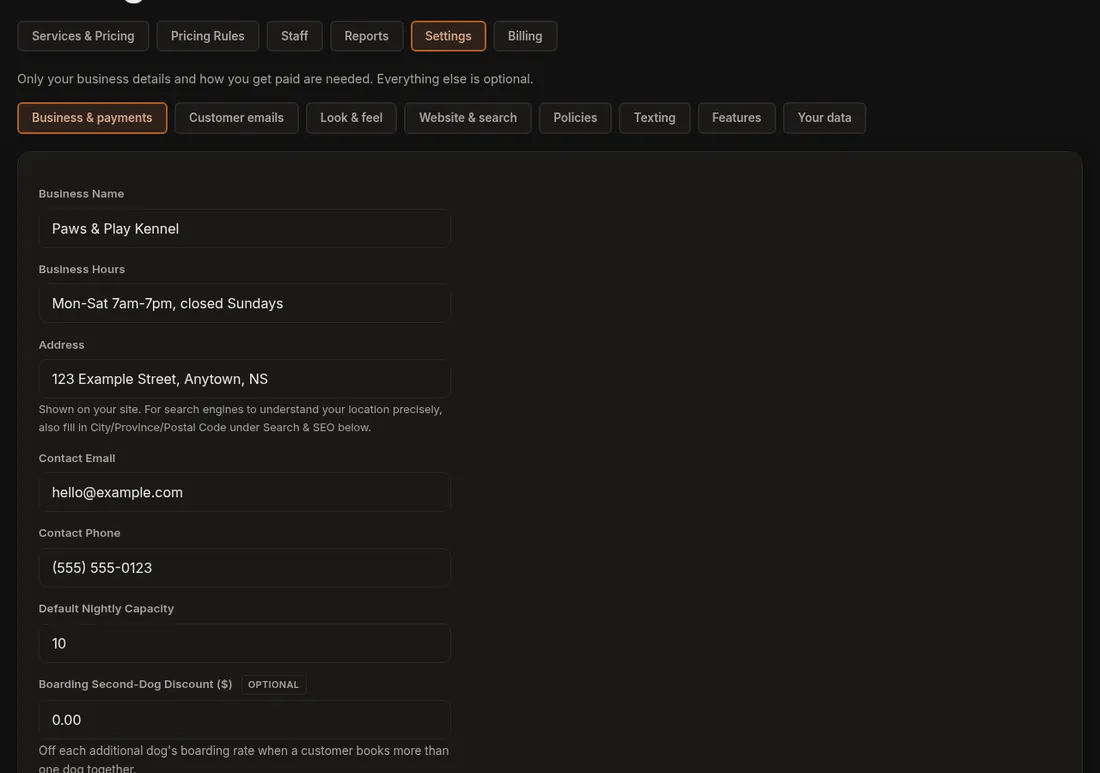
- Check your business details. Open Settings (the gear tab), then Business & payments. Your business name and contact email are already there from sign-up. Add your address, business hours and phone number, then press Save Settings. These show on your site and in your emails. Guide
- Check your time zone and currency. They are further down the same page. A new kennel starts on the time zone your browser reported at sign-up (Atlantic time if it could not tell) and Canadian dollars. Guide
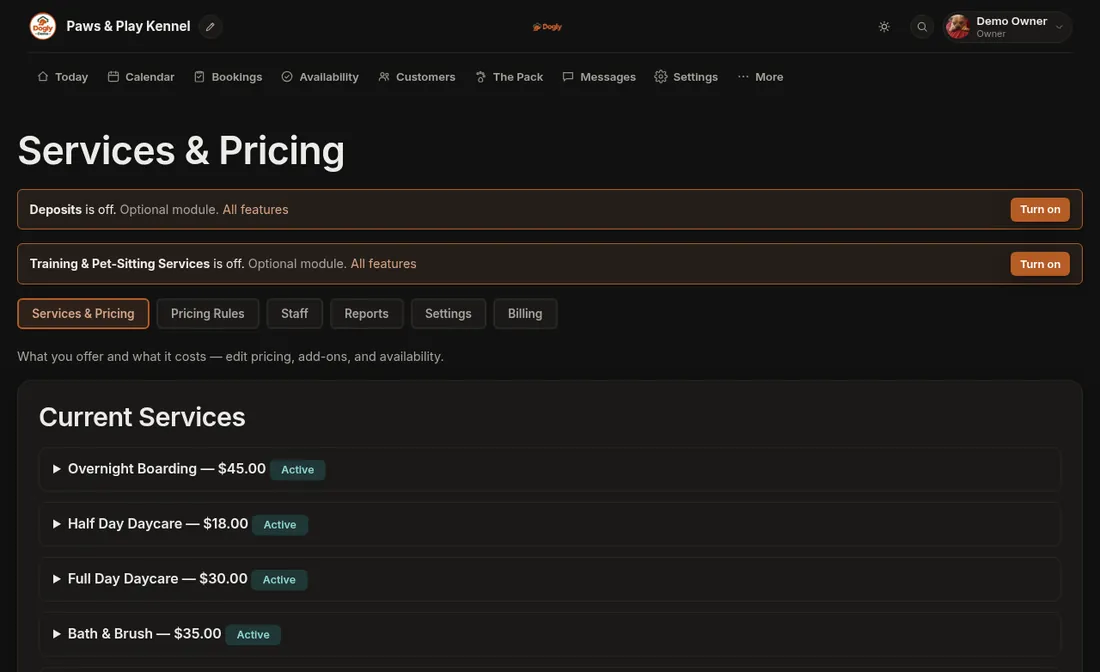
- Add your services and prices. Go to More → Business → Services & Pricing. If the list is empty, press Add three starter services for me. That adds Overnight Boarding ($45), Full Day Daycare ($30) and Full Groom ($65), all hidden. Open each one, set your own price and tick Visible to customers. Guide
- Set how many dogs you can take. Back in Settings, Default Nightly Capacity starts at 10. Change it to your real number. To change one date, or close a day, use the Availability tab. Guide
- Choose how people pay. Pay in person is already on. For card payments, pick Stripe or Square under Payment Provider, press Save Settings, then press Connect Stripe or Connect Square. Guide
- Make it look like you. In Settings, open Look & feel. Pick a template and colour theme, upload a square logo and press Save Branding. Guide
- Read your waiver. Settings → Policies. Dogly starts you with a generic waiver, so read it over and make it your own. Waiver and Vaccinations
- Do a test booking. Open your site in a private browser window, sign up as a customer and book, choosing pay in person. Then cancel it from Bookings. Guide
Good to know
- The Getting Started box on your Today screen follows four things: a service added, an address or opening hours entered, Stripe or Square connected, and one photo in your gallery. It disappears once all four are done.
- Your site is live at the web address you chose at sign-up (yourname.dogly.ca) from the first day of your trial. A customer can only book a service you have made visible.
- Your dashboard comes with a few example dogs so it does not look empty. Clear them under Settings → Your data when you are ready. See Clear the example dogs and customers.
- Your own web address (like yourkennel.com) can wait until after launch. See Connect your own domain.
Want the whole journey in one place, all the way to going public? See Your setup checklist: from signup to your first booking.